Fitbit is missing from product selection
Confirm you are using the Google Account connected to Fitbit and review Google's account-transition guidance.
Export guide
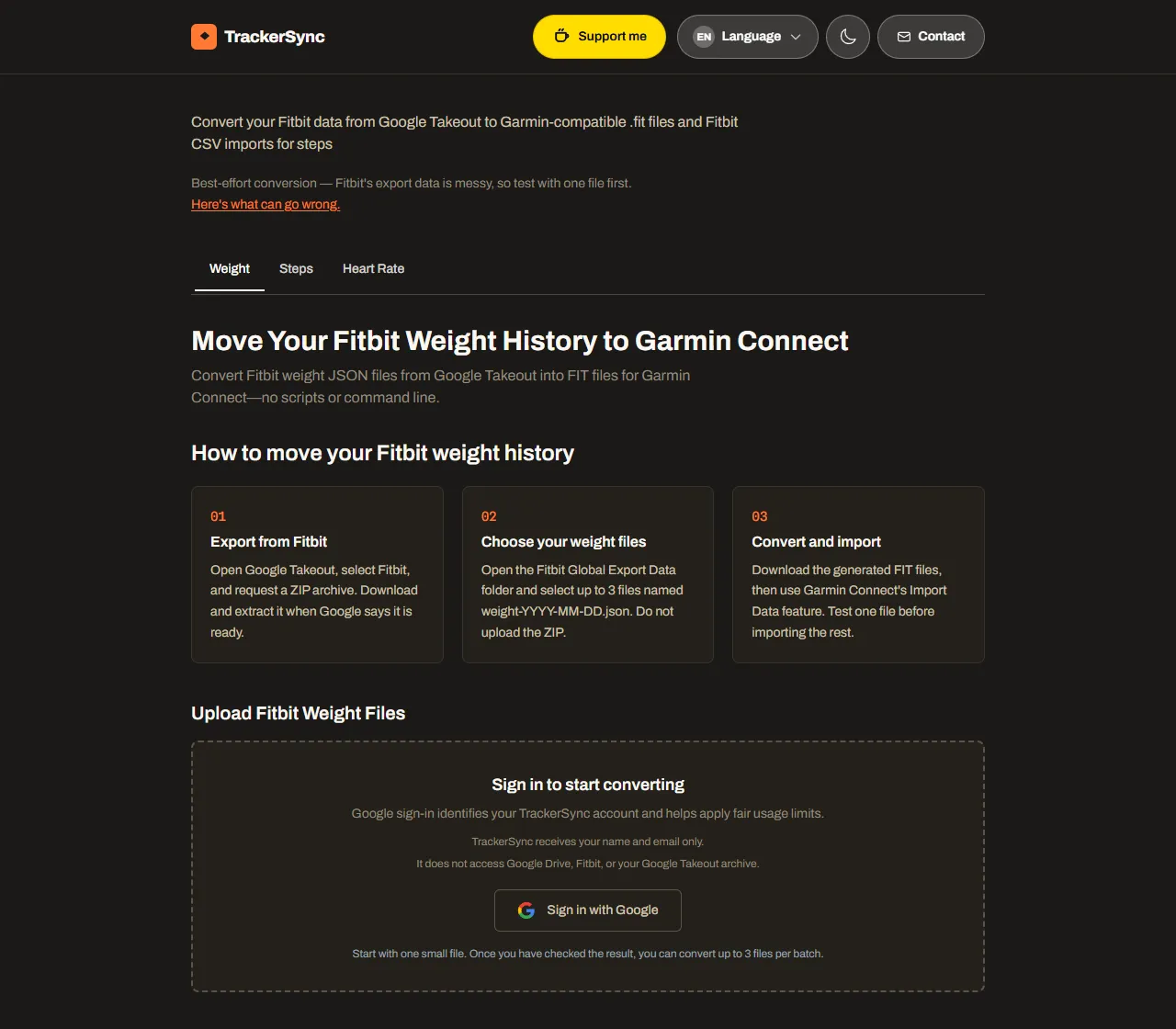
Use this checklist to request the right archive, find supported files, and prepare a small conversion batch before importing anything into Garmin Connect.
Sign into the correct Google Account linked to the Fitbit history you want to export.
Open Google Takeout and review the products available for that account.
Select Fitbit or the health-data product shown for your account, then request a one-time archive.
Wait for Google's archive email, then download every part before its link expires. Large exports can take time to prepare.
Extract the archive on a desktop computer and open the Fitbit Global Export Data folder.
Choose only matching Weight, Steps, or Heart Rate JSON files and upload no more than 3 files per batch.
Run the matching TrackerSync converter and download its FIT or CSV output.
Before importing, review the metric-specific limits: existing step days take precedence, optional weight fields can vary, and historical heart-rate FIT files may be rejected.
Typical extracted folder: Takeout/Fitbit/Global Export Data
TakeoutFitbitGlobal Export Dataweight-YYYY-MM-DD.jsonsteps-YYYY-MM-DD.jsonheart_rate-YYYY-MM-DD.jsonheartrate-YYYY-MM-DD.jsonUpload no more than 3 files per batch.
Google Takeout exports your whole Fitbit history in one archive; it has no date picker. To work with a single period, extract the archive and keep only the daily files whose names fall in the range you want — each file is named for its date, such as weight-2025-11-11.json. Converting and importing one range at a time also makes it far easier to check the result in Garmin Connect before you continue.
Weight sits in the Global Export Data folder as weight-YYYY-MM-DD.json, one file per date, holding the recorded weight, the timestamp, and a body-fat percentage when your scale supplied one. This is the measurement Garmin Connect accepts most reliably, because body composition is part of its documented import format.
Open the weight converterHeart rate is exported as heart_rate-YYYY-MM-DD.json (older archives use heartrate-YYYY-MM-DD.json), with minute-by-minute readings and a confidence value. Resting heart rate sits in its own file. TrackerSync produces a valid .FIT file from these, but Garmin Connect can still decline historical heart-rate imports, so convert a single day first.
Open the heart rate converterYes — the Google Takeout archive keeps the fine detail. Step files carry per-minute entries and heart rate is recorded minute by minute, so the raw resolution is there if you want to analyse it yourself. What you cannot do is bring that detail into Garmin Connect: its importer takes daily totals for activity, so TrackerSync adds the minutes up into one figure per day.
Open the steps converterTakeout gives you JSON, which spreadsheets do not open directly. Excel reads it through Power Query (Data → Get Data → From File → From JSON), and Google Sheets needs an add-on or a conversion step first. If all you want is a spreadsheet of daily step totals, the steps converter already produces a CSV that opens in either program with no extra tooling.
Get daily steps as CSVSleep is exported in its own JSON files covering sleep stages, duration, and start and end times, and it stays readable in the archive without any app. There is no sleep converter here, because the Garmin Connect importer does not accept sleep from a third-party file — the block is on Garmin's side and no converter can work around it. Keep the Takeout archive if you want to hold on to that history.
Confirm you are using the Google Account connected to Fitbit and review Google's account-transition guidance.
Google prepares archives asynchronously. Wait for the completion email and retry the request only if Google reports a failure.
The selected date and time zone affect day boundaries. Test a small range and compare records near midnight.
Garmin can keep existing daily data instead of the imported value. Review duplicates and already-populated days before importing.
Use an original JSON file with a supported filename pattern. Do not upload the ZIP archive or rename unrelated metrics.
A valid FIT file does not guarantee that Garmin Connect accepts historical heart-rate imports. Keep the output and test a single day first.
Garmin Connect's importer accepts two things from a third-party file: body composition (weight, BMI, body fat) and daily activity totals such as steps, distance, calories, and active minutes. Everything else is refused at Garmin's end. These are the questions people ask most often about the metrics that fall outside that list.
No. Garmin Connect's importer only accepts body composition (weight, BMI, body fat) and daily activity totals. Sleep, SpO2 (blood oxygen), stress, and HRV sit outside that list, so Garmin refuses them from any uploaded file. This is Garmin's restriction, not a TrackerSync limitation.
No tool can, because the block is on Garmin's side. A perfectly valid FIT file holding sleep, SpO2, stress, or HRV is still rejected on import. Any service that promises otherwise is describing something Garmin Connect does not support.
No. Garmin computes HRV Status, Training Readiness, Body Battery, and sleep scores only from readings your own Garmin device takes while you wear it, and HRV Status needs roughly three weeks of overnight readings. Imported history never feeds those calculations, even for data types Garmin does accept.
Keep the Google Takeout archive itself. The sleep, SpO2, stress, and HRV JSON files in the Fitbit Global Export Data folder hold your full readings with their original timestamps and stay readable without any app. TrackerSync does not offer converters for these four metrics, because the output could not enter Garmin Connect anyway.
Weight and daily steps match what Garmin's importer accepts, and both have a converter here. Heart rate also converts to a valid FIT file, but Garmin Connect can still reject historical heart-rate imports, so test a single day before converting years of data.
Weight and steps below match what Garmin's importer accepts. Heart rate converts to a valid FIT file, but Garmin Connect can still reject historical heart-rate imports, so convert a single day first and confirm it lands.